
Fanimation Ceiling Fan Remote Instructions: A Comprehensive Guide
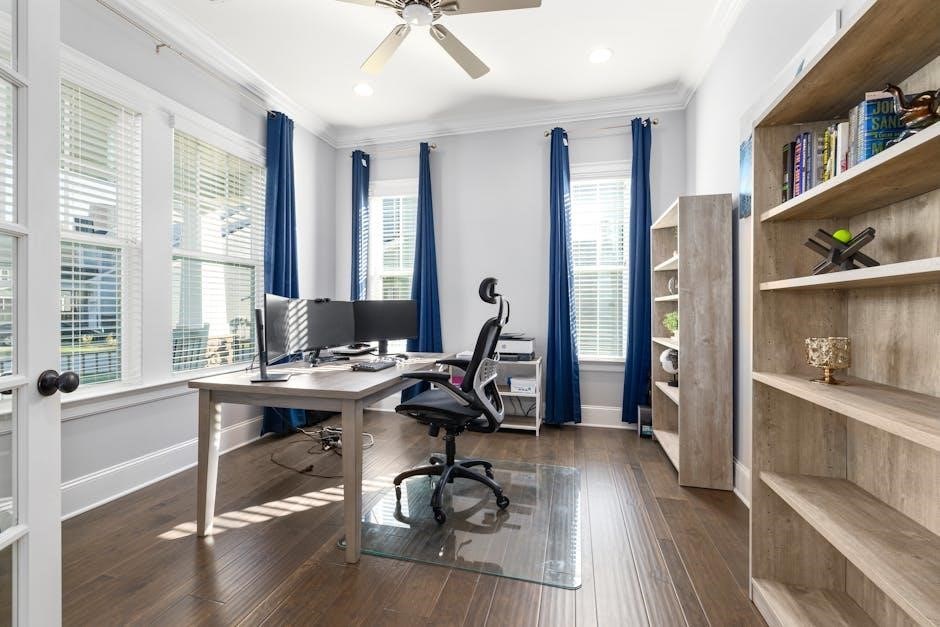
Fanimation fans blend beauty and function, offering stylish designs and convenient controls. This guide provides detailed setup and programming instructions for your remote, ensuring seamless operation.
Explore troubleshooting tips, remote pairing, and model-specific guidance, including Windpointe instructions, for optimal performance and energy efficiency. Visit fanimation.com!
Understanding Fanimation Remotes
Fanimation ceiling fan remotes are designed to provide convenient control over your fan’s speed, light functions, and directional settings. These remotes utilize radio frequency (RF) technology, eliminating the need for a direct line of sight between the remote and the fan receiver. This is a significant advantage over older infrared (IR) remotes.
The functionality extends beyond basic on/off and speed adjustments. Fanimation remotes often include features like a reverse function for seasonal mode (changing the blade direction for summer or winter), and dedicated buttons for light dimming or color temperature control, depending on the light kit installed.
Different Fanimation fan models may utilize slightly different remote designs and features. However, the core principles of operation remain consistent. Understanding the specific buttons and their corresponding functions is crucial for optimal use. The remote’s code must be set correctly to ensure communication with your specific fan. Proper pairing and code setting are essential steps in the initial setup process, detailed in subsequent sections.
Fanimation strives to provide seamless control and ultimate personal comfort through the latest technology.
Remote Compatibility & Model Numbers
Fanimation remotes aren’t universally interchangeable. Compatibility depends heavily on the fan model and the remote’s specific frequency and coding. Identifying your fan’s model number is the first step in determining the correct replacement or compatible remote. You can typically find this information on a sticker located on the fan’s motor housing.

Most Fanimation AC fans are compatible with a range of remotes, but always verify compatibility before purchasing a replacement. The fanimation.com website provides detailed compatibility charts and lists of approved remotes for each fan model. Using an incompatible remote may result in limited functionality or no operation at all.
For newer models, particularly those with high-speed functionality or advanced light kit controls, specific remotes are required. The Windpointe model, for example, may necessitate a remote designed to handle its unique features. When seeking a universal remote, ensure it specifically lists Fanimation as a supported brand and ideally, includes your fan’s model number in its compatibility list.
Always consult the product catalog or the Fanimation website for the most up-to-date compatibility information.
Initial Setup: Battery Installation
Before attempting to pair or program your Fanimation ceiling fan remote, proper battery installation is crucial. Most Fanimation remotes require either AAA or AA batteries, depending on the model. Refer to the remote’s battery compartment for the correct battery type and quantity.
Carefully open the battery compartment, usually located on the back of the remote. Insert the batteries, ensuring correct polarity – match the positive (+) and negative (-) terminals as indicated inside the compartment. Incorrect battery installation can damage the remote and prevent it from functioning correctly.
Once the batteries are securely in place, close the battery compartment cover. A properly installed battery will power on the remote, typically indicated by an LED light or a display screen. If the remote doesn’t power on, double-check the battery polarity and ensure the batteries are fresh.
Low battery power can cause intermittent operation or reduced range, so using new, high-quality batteries is always recommended for optimal performance.
Pairing the Remote to the Fan
Pairing your Fanimation remote to the ceiling fan establishes communication, allowing control of fan speed, lights, and other functions. The process varies slightly depending on the fan model, but generally involves putting the fan into pairing mode.
Important: You MUST set your ceiling fan to HIGH SPEED and the LIGHT KIT (if applicable) to the ON position before initiating the pairing process. This is a critical step for successful synchronization.
Typically, this involves cycling the power to the fan – turning it off and on again – a specific number of times within a short timeframe. Consult your fan’s specific manual for the exact procedure. Once the fan is in pairing mode, press and hold the pairing button on the remote (often indicated by a small receiver icon).
The fan may blink or emit a signal to confirm pairing. Successful pairing is usually indicated by the fan responding to remote commands. If pairing fails, repeat the process, ensuring the fan is on high speed and the light kit is on.
Setting the Remote Code
Setting the remote code is crucial for ensuring your Fanimation remote communicates correctly with your specific fan model. This process establishes a unique connection, preventing interference from other remotes. The code setting is typically done using a small screwdriver or a ballpoint pen.
Locate the code setting switches inside the battery compartment of the remote. These are usually a series of tiny DIP switches. Refer to the code list provided with your fan or on the Fanimation website (fanimation.com) to find the correct code for your fan model.
Carefully adjust the DIP switches on the remote to match the corresponding code. Ensure the switches are fully in the ‘on’ or ‘off’ position for accurate setting. After setting the code, re-install the batteries and test the remote’s functionality.
If the remote doesn’t work after setting the code, double-check the code list and verify the switch positions. Incorrect code setting is a common reason for remote malfunction.
Using the Speed Control Functions
Fanimation remotes offer intuitive speed control functions, allowing you to customize airflow to your preference. Typically, the remote features buttons labeled “Speed” or with icons representing different fan speeds – Low, Medium, and High. Pressing these buttons cycles through the available speed settings.
Some Fanimation fans, particularly those with high-speed capabilities, may include an additional “Turbo” or “Max” speed setting for maximum airflow. Experiment with the different speeds to find the most comfortable setting for your environment.
The remote may also include a “Breeze” or “Natural” mode, which simulates a natural breeze by varying the fan speed. This function provides a more comfortable and less consistent airflow.
Ensure the fan is powered on and the remote is properly paired before attempting to use the speed control functions. If the fan doesn’t respond, refer to the troubleshooting section of this guide.
Light Control Operations

Fanimation remotes equipped with light control functionality offer convenient operation of your ceiling fan’s integrated light kit. Typically, a dedicated “Light” button on the remote toggles the light on and off with each press. Some remotes feature separate buttons for individual light control if your fan has multiple light sources.
Many Fanimation remotes also include a dimmer function, allowing you to adjust the brightness of the light. This is usually controlled by pressing and holding the “Light” button or using dedicated dimmer buttons; The light will gradually dim or brighten as you continue to hold the button.
Before using the light control functions, ensure a compatible light kit is installed and the remote is correctly paired with the fan. If the light doesn’t respond, verify the bulb is functioning and check the remote’s battery level.
Remember to set the fan to high speed and the light kit to ‘on’ during the initial pairing process, as required for certain models.
Reverse Function (Seasonal Mode)
Fanimation ceiling fans offer a convenient “Reverse” function, often controlled directly from your remote. This feature allows you to change the direction of the fan blades, adapting the fan’s operation for optimal comfort in both summer and winter months.
During warmer seasons, the fan should rotate counter-clockwise, creating a downward airflow that provides a cooling breeze. In colder seasons, switch to a clockwise rotation. This gently circulates warm air trapped near the ceiling, distributing it throughout the room and potentially reducing heating costs.
To activate the reverse function, locate the “Reverse” button on your Fanimation remote. A single press typically toggles between the two directions. Observe the blades to confirm the direction of rotation is appropriate for the current season.
Ensure the remote is properly paired with the fan before attempting to use the reverse function. If the function isn’t responding, check the remote’s batteries and refer to the troubleshooting section of this guide.
Troubleshooting: Remote Not Responding
If your Fanimation remote isn’t responding, begin with the simplest solutions. First, verify the batteries are fresh and correctly installed, ensuring proper polarity. Weak batteries are a common cause of remote failure. Try replacing them with a new set.
Next, ensure there are no obstructions between the remote and the fan’s receiver. Direct line of sight isn’t always necessary, but significant interference can hinder the signal. Also, confirm the fan is receiving power – check the wall switch and circuit breaker;
If the issue persists, attempt to re-pair the remote with the fan, following the pairing instructions outlined earlier in this guide. A lost connection between the devices can prevent operation. If re-pairing fails, try resetting the remote control (see the dedicated section).
As a last resort, consider a universal remote as a replacement option. Resources are available online for programming a universal remote to control your Fanimation fan.
Troubleshooting: Fan Not Responding to Remote
When your Fanimation fan doesn’t respond to the remote, despite the remote appearing functional, several factors could be at play. First, double-check that the fan is switched on at the wall and receiving power. A tripped circuit breaker or a switched-off wall switch will prevent any remote control operation.
Crucially, for initial pairing or after power interruptions, ensure the fan is set to high speed and the light kit (if applicable) is turned on. This is a mandatory requirement for successful synchronization with the remote. Refer to the pairing instructions for detailed steps.
If the fan still doesn’t respond, attempt to re-pair the remote, even if you believe it’s already paired. Interference or a corrupted signal can disrupt the connection. Also, verify the remote code is correctly set for your fan model.
For AC fan models, confirm compatibility and proper wiring. If problems persist, consult the Fanimation website or contact customer support for assistance.
Resetting the Remote Control
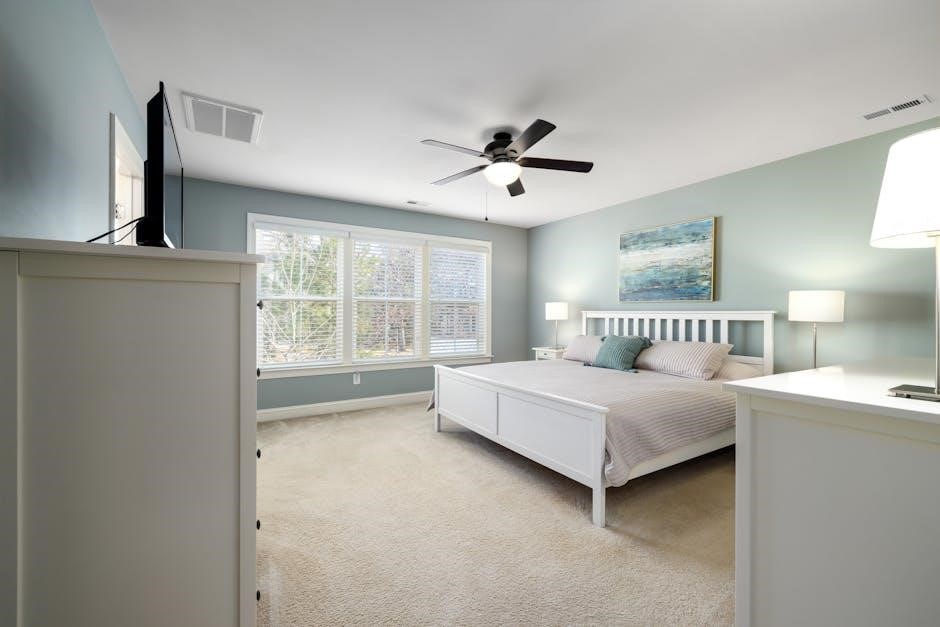
If your Fanimation remote is malfunctioning – exhibiting erratic behavior, failing to pair, or responding inconsistently – a reset can often restore its functionality. The reset procedure typically involves removing the batteries from the remote control for a sustained period, generally at least 30 seconds. This allows any stored memory or corrupted settings to clear.
After removing the batteries, use the opportunity to inspect the battery contacts for any corrosion or debris. Clean them gently if necessary, ensuring a solid connection when the batteries are reinserted. Use fresh batteries of the correct type, as low battery power can also cause operational issues.
Upon reinserting the batteries, you will likely need to re-pair the remote with your Fanimation fan, following the pairing instructions outlined in this guide. Remember to set the fan to high speed and the light kit on during the pairing process.
If resetting doesn’t resolve the issue, consider exploring universal remote options or contacting Fanimation support.
Replacing a Lost or Damaged Remote
Losing or damaging your Fanimation ceiling fan remote can be frustrating, but thankfully, replacements are readily available. The most straightforward option is to contact Fanimation directly through their website, fanimation.com, or by phone. They can provide a direct replacement remote specifically designed for your fan model, ensuring full compatibility.
However, a convenient and often quicker solution is to utilize a universal remote control. Numerous universal remotes are compatible with Fanimation fans, offering a cost-effective alternative. A recommended option can be found at https://amzn.to/49lqGlO.
When opting for a universal remote, you’ll need to program it to recognize your Fanimation fan. This typically involves entering a specific code for Fanimation into the universal remote, following the instructions included with the remote itself. Ensure the fan is set to high speed and the light kit is on during the programming process.
Always verify compatibility before purchasing a universal remote to guarantee seamless operation.
Universal Remote Compatibility
Fanimation ceiling fans, while designed for their dedicated remotes, often exhibit compatibility with a wide range of universal remote controls. This offers a convenient and cost-effective solution if your original remote is lost, damaged, or malfunctioning. However, successful operation hinges on selecting a universal remote with the appropriate code set for Fanimation.
Many popular universal remote brands include Fanimation in their code libraries. The programming process generally involves entering a specific code, found in the universal remote’s manual, that corresponds to Fanimation. It’s crucial to consult the manual, as codes can vary between models.
Before purchasing, confirm the universal remote supports RF (Radio Frequency) control, as many Fanimation remotes utilize this technology. Additionally, ensure the remote’s features – speed control, light dimming, reverse function – align with your fan’s capabilities. A reliable source for compatible remotes can be found at https://amzn.to/49lqGlO.
Remember to set your fan to high speed and activate the light kit during the programming sequence for optimal results.

Programming a Universal Remote for Fanimation
Programming a universal remote for your Fanimation ceiling fan typically involves a code search or manual code entry. Begin by consulting your universal remote’s manual for specific instructions, as procedures vary by brand. Generally, you’ll start in programming mode, often activated by pressing a “Setup” or “Code Search” button.
The manual code entry method requires finding the Fanimation code within the remote’s code list. Enter this code using the number pad, then test functionality – fan speed, lights, reverse. If successful, save the code. If not, repeat with different Fanimation codes.
Alternatively, the code search method automatically cycles through codes. Follow the remote’s prompts, and when the fan responds, immediately confirm the code. Important: ensure the fan is on high speed with the light kit activated (if applicable) during programming.
If encountering issues, revisit the manual or consult the manufacturer’s website for assistance. A successful program ensures seamless control of your Fanimation fan.
Windpointe Model Specific Instructions
The Windpointe by Fanimation, known for its stylish versatility, requires specific attention during remote pairing. Before initiating the pairing process, it’s crucial to ensure the ceiling fan is set to high speed and the light kit is turned on – if your model includes one. This is a mandatory step for successful synchronization.
Begin by verifying the remote has fresh batteries. Then, using a small screwdriver or a ballpoint pen, gently press the remote code setting button located within the battery compartment. Simultaneously, cycle the fan’s power switch off and on six times within ten seconds.
The fan blades should briefly rotate, indicating it’s in pairing mode. If pairing fails, repeat the process, ensuring precise timing. The Windpointe’s design prioritizes both aesthetics and functionality, so proper setup is key. Refer to fanimation.com for detailed diagrams and troubleshooting.
High Speed & Light Kit Requirement for Pairing
Successful remote pairing with your Fanimation ceiling fan hinges on a critical preliminary step: setting the fan to high speed. This isn’t merely a suggestion; it’s a mandatory requirement for initiating the receiver’s pairing mode. Simultaneously, if your fan model is equipped with a light kit, ensure it is switched on. The combination of high fan speed and illuminated light kit signals the receiver to accept the remote’s signal.
Without adhering to this protocol, the remote will likely fail to connect, leading to frustration. The receiver needs this specific electrical state to recognize and synchronize with the remote’s unique frequency. This applies to most Fanimation AC fans – always consult the product catalog or fanimation.com for model-specific exceptions.
Remember, this step must be completed before attempting any code setting or pairing button presses on the remote itself. Proper preparation guarantees a smooth and efficient pairing experience.

AC Fan Model Considerations
When working with Fanimation AC ceiling fans, understanding specific model nuances is crucial for successful remote control operation. Most Fanimation AC fans are compatible with standard remote pairing procedures, but variations exist. Always refer to your fan’s catalog or the official fanimation.com website for detailed instructions tailored to your specific model number.
The remote code setting, typically done with a small screwdriver or ballpoint pen, may differ slightly between models. Ensure you’re using the correct code for your fan to establish communication. Remember the prerequisite of setting the fan to high speed and activating the light kit (if applicable) before initiating pairing.
If you encounter difficulties, double-check the receiver module within the fan canopy for any model-specific instructions or diagrams. Fanimation provides comprehensive support resources online, including FAQs and troubleshooting guides, to assist with AC fan remote control issues.
Online Resources & Fanimation Website
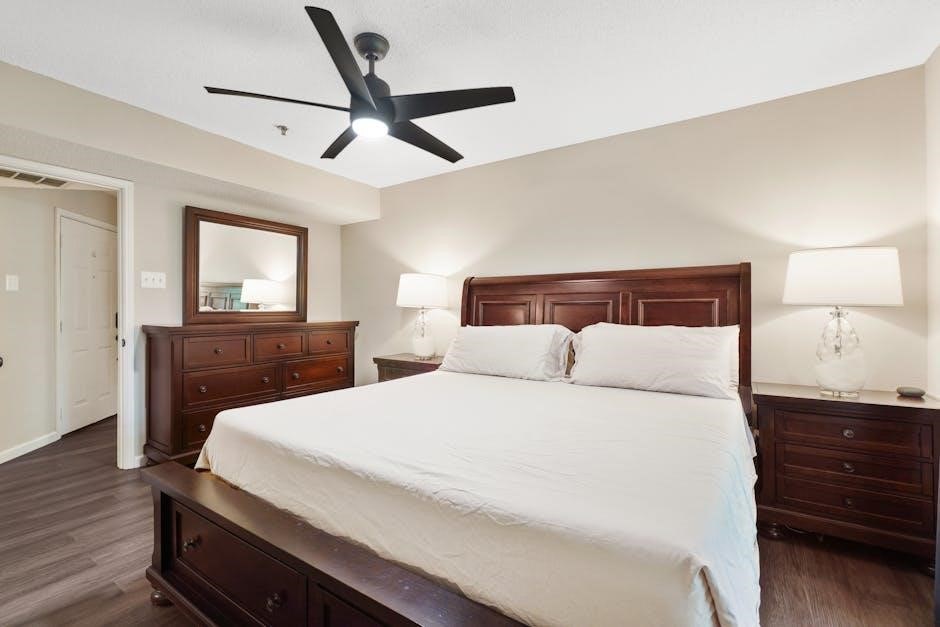
Fanimation’s official website, fanimation.com, serves as a central hub for all your remote control and fan-related needs. The site offers extensive product catalogs, detailed specifications, and downloadable instruction manuals for every Fanimation model. You’ll find step-by-step guides on remote setup, programming, and troubleshooting, specifically addressing common issues.
Beyond the core documentation, fanimation.com features a dedicated support section with frequently asked questions (FAQs) and helpful articles. These resources cover a wide range of topics, from remote pairing to resolving connectivity problems. Explore video tutorials demonstrating remote functionality and maintenance procedures, like pull chain switch upkeep.
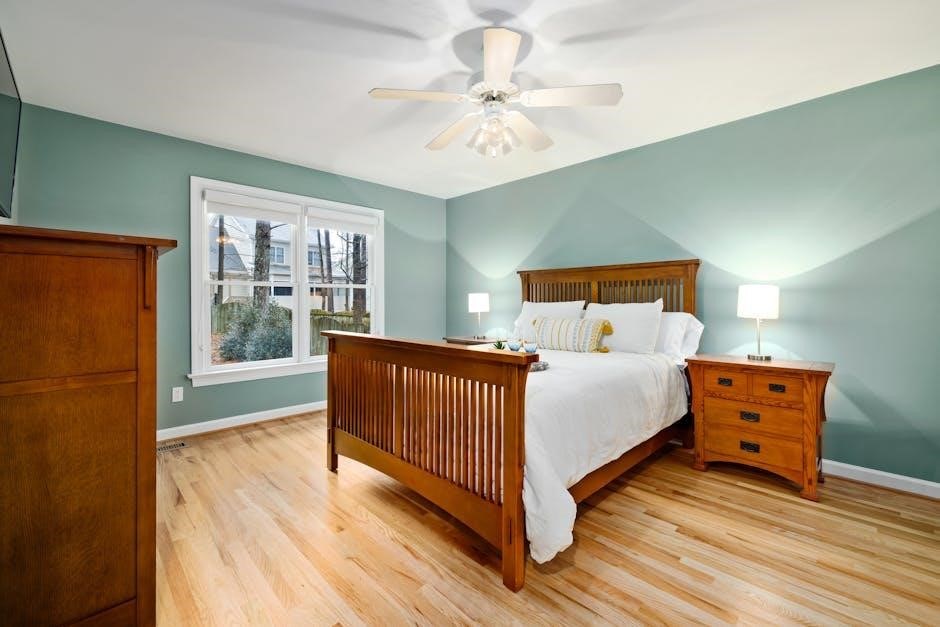
Furthermore, the website provides access to customer service contact information, allowing you to directly reach Fanimation’s support team for personalized assistance. Regularly check the site for updates, new product releases, and valuable information regarding your Fanimation ceiling fan.
Product Registration & Warranty Information
Fanimation encourages, though doesn’t require, product registration to enhance your ownership experience. Registering your ceiling fan and remote control allows Fanimation to promptly inform you of any critical safety notices or potential recalls affecting your specific model. This proactive approach ensures you remain informed and can take necessary precautions.
Furthermore, registration streamlines the warranty service process should you encounter any issues covered under the Fanimation warranty. Having your product registered allows for faster and smoother claims processing, minimizing delays in receiving assistance. The warranty typically covers defects in materials and workmanship for a specified period.
Detailed warranty information, including coverage terms and conditions, is available on the Fanimation website, fanimation.com. Keep your proof of purchase readily accessible, as it’s required for all warranty claims. Registering your product demonstrates your commitment to safe and reliable operation of your Fanimation fan.
Safety Precautions When Using Remotes
Fanimation prioritizes safety, and proper remote control usage is crucial. Always ensure the ceiling fan is within your line of sight when operating with the remote, especially during initial setup and programming. Never allow children to operate the remote unsupervised, as unintended activation could lead to injury.
Avoid exposing the remote to excessive moisture or extreme temperatures, as this can damage the internal components and create a potential hazard. Do not attempt to disassemble or repair the remote yourself; contact Fanimation customer support for assistance. Regularly inspect the remote for any signs of damage, such as cracked casing or exposed wiring.
When changing batteries, always use the correct type and polarity as indicated in the battery compartment. Dispose of used batteries responsibly, following local regulations. If the remote malfunctions or exhibits unusual behavior, discontinue use immediately and consult the troubleshooting section or fanimation.com.
Energy Efficiency & Remote Control Features
Fanimation fans, coupled with their remote controls, are designed for optimal energy efficiency. Utilizing the remote allows precise speed control, minimizing energy consumption by operating the fan only at the necessary level. The remote’s light control features further enhance savings by enabling independent operation of the fan and light kit, or dimming capabilities where available.
Scheduling features, if supported by your remote model, can automate fan operation, ensuring energy isn’t wasted when a room is unoccupied. The remote facilitates convenient seasonal adjustments using the reverse function, optimizing airflow for both cooling and heating modes, reducing reliance on HVAC systems.
By leveraging these remote control features, you can significantly reduce your energy bills and contribute to a more sustainable lifestyle. Explore fanimation.com for detailed information on energy-saving tips and compatible remote models designed to maximize efficiency.